
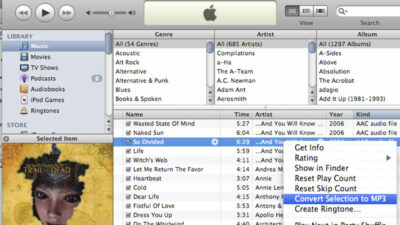
iTunes is much more than a digital music jukebox. It’s capable of handling many tasks involving digital media and your iPod. Some of iTunes’ most popular features include buying music online, burning CDs, and syncing files with your iPod or iPhone. But one of the lesser known functions hidden within iTunes is the ability to convert audio files. This tutorial will show you how to convert iTunes songs to MP3 and other audio file types.
Why would you need to convert an audio file? Converting audio file types can be useful in different situations. Here are a few examples:
- You have an AAC file in iTunes that’s not compatible with other devices like the Zune that can only play MP3 files.
- A WAV file needs to be emailed to a client for approval but it’s too big. You need to convert the file to an AAC so it’s small enough to easily send via email.
- You are making a music video and want to use a song you purchased from the iTunes Store as the soundtrack. However, the editing program won’t import the song because of Apple’s protective DRM (Digital Rights Management).
How To Convert iTunes Songs To MP3 And Other Formats Within iTunes
Many programs that convert audio files into different formats are pretty complicated and usually cost money. But not iTunes. iTunes is simple, fast and best of all… free. Here’s how to use iTunes to convert audio files.
Requirements:
- iTunes (free download)
- At least one song in your iTunes library that you want to convert to a different format.
Launch iTunes
Open iTunes. It should be listed under your START menu (PC) on in your Applications folder (Mac).
Open Your iTunes Preferences Window
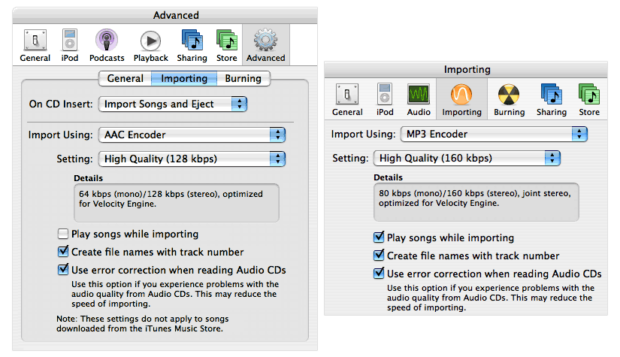
Open the iTunes preferences window (iTunes > Preferences) and navigate to the importing options screen. Depending on what version of iTunes you are using, the importing options may be in a different place. Older versions of iTunes have a separate orange Importing icon in the preferences window. Current versions of iTunes have the importing options hidden as a nested tab in the Advanced section like in the image below.
Decide On An Audio Format
What format would you like to convert your audio files to? iTunes is capable of converting to/from several formats including: AAC, AIFF, Apple Lossless, MP3 and WAV.
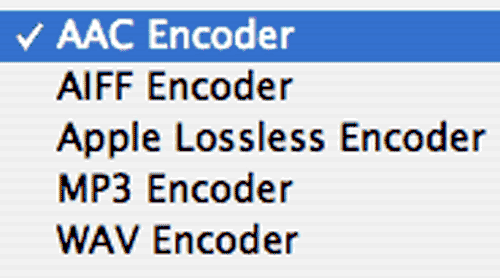
For example, select MP3 if your friend wants one of your AAC songs converted to an MP3 file, so they can listen to it on their non-iPod/iPhone music player. iTunes also allows you to dictate a bit rate quality for the song(s) that you want to convert. 128 kbps is the default setting and should be a high enough quality for the average person. Select a higher bit rate if you desire.
Close The Preferences Window
Close the preferences window and find the song(s) that you would like to convert in your iTunes library. You can hold down the Shift or Apple (Alt on Windows) key and select multiple songs at the same time if needed.
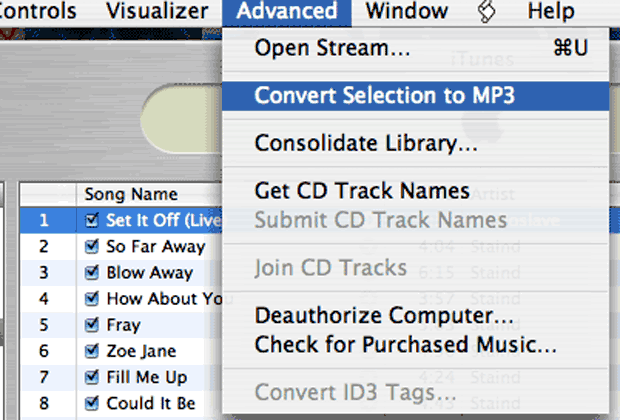
Convert Selection To MP3
Select “Convert Selection to…” from the Advanced menu or right-click on one of the selected songs to bring up a contextual menu.
Wait For The Audio Conversion To Complete
Once the conversion process begins you will see an orange spinning ball in the iTunes Source window. You can click on this icon to see the progress of the conversion process.
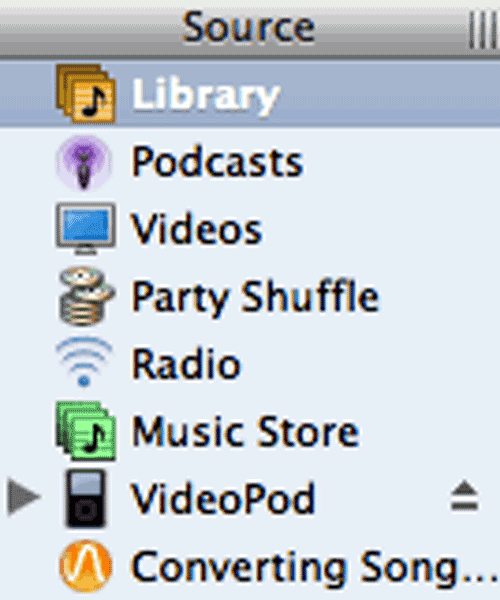
The time it takes to convert the song(s) will vary depending on the number of songs, the type of conversion, and the speed of your computer. You may want to quit other applications if you are in a hurry and need to speed up the conversion process. When iTunes is done converting the songs you will hear a chime. This is the same chime sound that iTunes plays when it has finished burning a CD.
How To Convert Protected iTunes DRM Songs To MP3
If one of the songs you are trying to convert was purchased from the iTunes Store and isn’t in iTunes Plus format, then you will get an error message saying that protected files cannot be converted to other formats. The best way around this limitation is to burn the protected song(s) to an Audio CD (not a Data CD-ROM!!!) and reimport them back into iTunes.
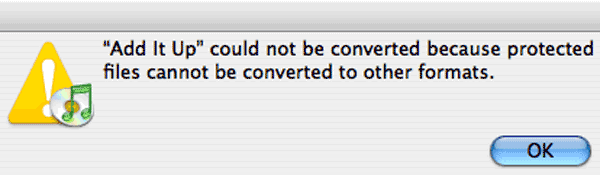
There are several “underground” applications, like Hymn, that will remove the DRM protection from a song purchased from the iTunes Store. However, Apple is constantly looking for ways to disable songs that have had the DRM tampered with. Don’t waste your time. Just burn an Audio CD and reimport the songs back into iTunes.
Dealing With Multiple Files In Your iTunes Library
Once your song(s) have finished being reimported/converted, search your iTunes library for the files. You should find 2 versions of each song you converted. One is the original file, the other is the converted version. If you only want the newly converted version of the song, then delete the old one. One easy way to tell the 2 songs apart is to view your iTunes Library by Date Modified. The newer song is the one you just converted.
I now have twp versions of the Ilya song called “BPD (Album Leaf Remix).” When viewing my iTunes Library by date modified, I can easily see which file was most recently created. The newer file is the one I just converted.

That’s It!
Mission accomplished. Congrats, you now know how to convert iTunes songs to MP3. We suggest only converting small batches at a time and not your entire iTunes Library at once. And as always, we suggest that you make a backup of your music before you get started.
NERD NOTE: iTunes is compatible with computers running Mac OS X, Windows 2000, Windows XP, and Windows Server 2003 operating systems. Apple have also developed a version which runs on mobile phones such as the Motorola ROKR and Motorola SLVR.

Frank Wilson is a retired teacher with over 30 years of combined experience in the education, small business technology, and real estate business. He now blogs as a hobby and spends most days tinkering with old computers. Wilson is passionate about tech, enjoys fishing, and loves drinking beer.











 Unlock Codes For “Wanted: Weapons Of Fate” Video Game Hidden On Blu-ray Version Of The Film
Leave a Reply