

As your iTunes Library grows, you will probably lose track of exactly what media you have already imported. Eventually you will end up with duplicate songs and videos. Yes, dreaded iTunes duplicates. For example, you might accidentally import a CD twice or add files from Limewire or BitTorrent. Or maybe a friend with a big Terabyte hard drive loaded you up with a lot of music recently.
Table of Contents[Hide][Show]

Here are a few tips and techniques on how to get rid of duplicate songs in your iTunes Library as well as some precautions you should take before deleting duplicate tracks.
Requirements:
- Any computer with iTunes 4.7 or higher installed (Mac or PC)
- iTunes duplicates of songs, books or videos in your iTunes Library
How To Remove Duplicate Songs From iTunes
Whether you’ve downloaded music, ripped DVDs or imported songs from CDs, you may have a few duplicate files causing clutter in your iTunes collection. Here’s how to find and get rid of any duplicate content in your iTunes Library:
Open iTunes
Open iTunes. You can find the iTunes application inside your applications folder.
Display iTunes Duplicates
Select “Display Duplicates” or “Show Duplicates” from either from the File menu (File > Show Duplicates)
or the Edit (Edit > Show Duplicates) or View menu (View > Show Duplicates). This will vary depending on what version of iTunes you have installed.
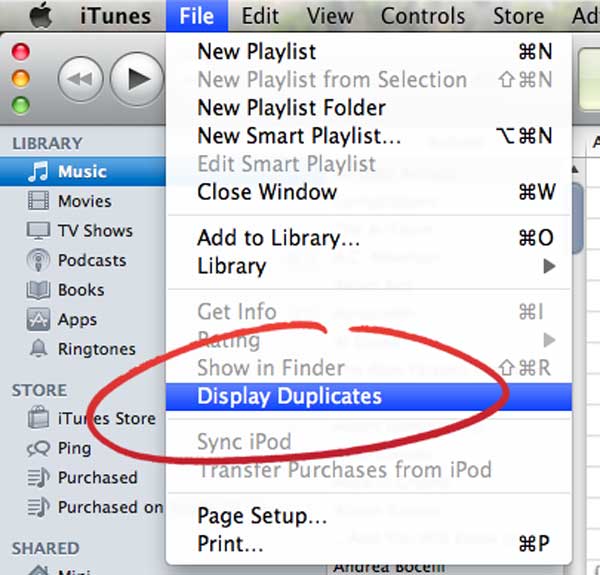
Scan For iTunes Duplicates
Analyze the metadata of your duplicates. You will now see all the media that you have doubles for in your iTunes Library. For example, take a look at the image below. We have two copies of the Alice Cooper song “School’s Out.” Should we delete one of them? Not so fast. Take a closer look at the Album column.
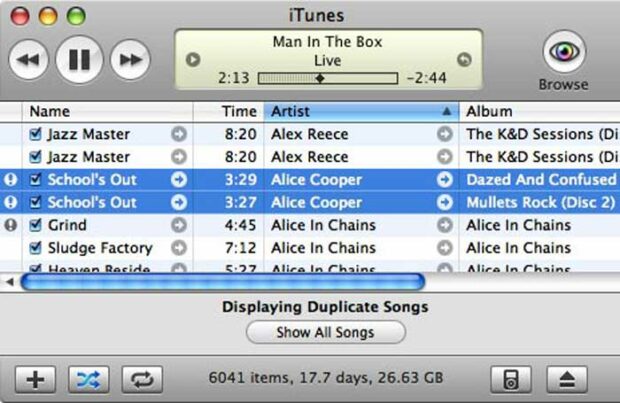
These two tracks may be the same song, but they are from two different albums. One is from the Dazed And Confused movie soundtrack and the other is from a compilation called Mullets Rock. They are the same songs, but from different albums.
If you were in this situation, should you delete one of them? This entirely depends on you. If you are short on hard drive space, then you might want to delete one of the tracks. At the office, we have a 2 TB Lacie drive with plenty of hard drive space for our music and will keep both songs. But if you have duplicate songs from the same album, then you should probably delete one of them.
Closely Analyze Your iTunes Duplicates Before You Delete Them
Before deleting a duplicate file, there are several things you should take into consideration.
- Play each file to make sure they imported properly and sound good. You don’t want to delete a good version of a song and keep a bad one.
- View the metadata of your duplicate tracks before deleting them. You can right-click on any song in iTunes or select “Get Info” from the File menu (File > Get Info). You might have two versions of the same file, but are they really the same? Were they imported at the same bit rate? Are they the same file size? Do they both have artwork?
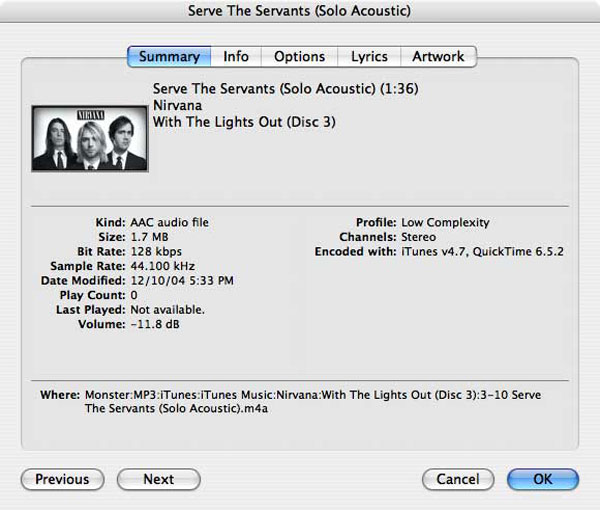
Here’s a good example of why you should check all duplicate tracks before deleting them. Let’s say your friend gave you a bunch of songs and you imported all of them into your iTunes Library. You already had a few of the songs they gave you and you ended up with some duplicates which you quickly deleted. Then later, you realize that many of the songs your friend gave you were purchased using their iTunes Music Store account and you can’t play them without their iTunes password. But now it’s too late. You already deleted your songs and now you have to reimport your CDs and even repurchase some songs from the iTunes Music Store.
Consider making a backup of your duplicate iTunes files before deleting them for good (see example above). You can make a new Playlist in iTunes and drag these duplicate songs and videos into this playlist. Then burn them to CD/DVD-ROM in case you need them in the future.
When Evaluating iTunes Duplicate Songs, Don’t Delete Live And Alternate Versions!
You can now manually delete these songs, but be careful! These duplicates might be from Live albums, soundtracks or even from a “Greatest Hits” CD. Take a look at the image below. I have three copies of the Alice In Chains song “A Little Bitter.” Two of them look like they are from the same album. The third track is a remix version of “A Little Bitter” from the Alice In Chains box set.

Show All Songs: Double-Check You Work
To “Show All Songs” again, you can select “Show All Songs” from the File, Edit or View menu (depends on what version iTunes you are using) or click on the button that says “Show All Songs” at the bottom of your iTunes window (File > Show All Songs).
NERD NOTE: iTunes 4.7 was the first version of the program that allowed users to easily display duplicate tracks in their Libraries. iTunes 4.7 was released on October 27, 2004. (Source: Wikipedia)
Deleting iTunes Duplicates – Using VBScript (PC Only)
This next method uses VBScript and will only work for Windows users. If you are unfamiliar with VBScript, it’s a coding language that allows you to make your own custom program for your PC. To run the duplicate song killer VBScript below, just follow these steps:
- Copy and paste the VBscript code listed below into a new Notepad document (Start > All Programs > Accessories > Notepad).
- Edit line #2 and replace “DaCeige” with your username. DaCeige is the MethodShop reader who wrote the script for us.
- C:\Users\DaCeige\Music\iTunes\iTunes Music
- Save the Notepad file using a file name like “DupKiller.vbs” Notepad will automatically try to add “.txt” to your text files. You MUST add the file extension “.vbs” to your file.
- Double-click on the file called “DupKiller.vbs” on your desktop. This will make a shortcut to the script.
- That’s it. Just double-click on the shortcut for now on to run the script.
- You may see a warning window from Norton AntiVirus when trying to run this script. Just select the option that allows this script to run. But be cautious before running a VBScript. Never run a VBScript without inspecting it first. Many times people will try to hide viruses in VBScripts.
Here’s the VB script below if you want to inspect or copy it.
Set objFSO = Wscript.CreateObject("Scripting.FileSystemObject")
Set objFolder = objFSO.GetFolder("C:\Users\DaCeige\Music\iTunes\iTunes Music")
Set colSubFolders = objFolder.Subfolders

'get inside each artist's folder
For Each objSubFolder in colSubFolders
	'Wscript.Echo objSubFolder.Name
	'once inside the folder do the following...
	Set colSubSubFolders = objSubFolder.Subfolders
	'Get inside each album folder
	For Each objSubSubFolder in colSubSubFolders
		'once inside do the following
		'WScript.Echo vbtab & objSubSubFolder.name
		Set colMP3Files = objSubSubFolder.Files
		For Each objMP3File in colMP3Files
			'Wscript.Echo vbtab & objMP3File.Name
			strCurrentMP3Name = objMP3File.Name
			For Each objMP3File2 in colMP3Files
				'Wscript.Echo Left(strCurrentMP3Name, Len(strCurrentMP3Name)-4) & vbtab & Left(objMP3File2.Name, Len(objMP3File2.Name)-6)
				If UCase(Left(strCurrentMP3Name, Len(strCurrentMP3Name)-4)) = UCase(Left(objMP3File2.Name, Len(objMP3File2.Name)-6)) Then
					'Wscript.Echo(UCase(strCurrentMp3Name & vbtab & objMP3File2.Name))
					'WScript.Echo objMP3File.Size & vbTab & objMP3File2.Size
					WScript.Echo "1" & vbTab & objMP3File.Size & vbTab & UCase(strCurrentMp3Name)
					WScript.Echo "2" & vbTab & objMP3File2.Size & vbTab & UCase(objMP3File2.Name)
					MP3Size1 = objMP3File.Size
					MP3Size2 = objMP3File2.Size
					MP3SizeDiff = objMP3File.Size - objMP3File2.Size
					WScript.Echo "-" & vbTab & MP3SizeDiff
					If (MP3SizeDiff > -10000) Then
						WScript.Echo "*" & vbTab & "DELETE2" & vbTab & objMP3File2.Name
						objFSO.DeleteFile(objMP3File2.Path)
					Else
						WScript.Echo "*" & vbTab & "DELETE1" & vbTab & objMP3File.Name
						objFSO.DeleteFile(objMP3File.Path)
						WScript.Echo "*" & vbTab & "RENAME" & vbTab & objMP3File2.Name & " -> " & strCurrentMP3Name
						objMP3File2.Name = strCurrentMP3Name
					End If
					WScript.Echo " "
				End If
			Next
		Next
	Next
Next
Alternate Ways To Manage Duplicate iTunes Songs
Several third party software companies and programmers have developed ways to help manage duplicate songs in iTunes. Here is a short list you might find useful:
- Corral All Dupes (Doug’s AppleScripts)
- iTunes Dupes Barrier (Hyperbolic Software)
- iTunes VBScript Dupe Killer (Josh G.)
Final Thoughts: How To Delete Duplicates In iTunes
iTunes duplicates can be a pain in the ass, but this issue can be taken care of with a little patience and know-how. Whether you use iTunes to manage your duplicates or an alternate option, you should always exercise caution before deleting your music.

Frank Wilson is a retired teacher with over 30 years of combined experience in the education, small business technology, and real estate business. He now blogs as a hobby and spends most days tinkering with old computers. Wilson is passionate about tech, enjoys fishing, and loves drinking beer.











 Conan O’Brien Plays 1860s Old-Timey Baseball
Leave a Reply