
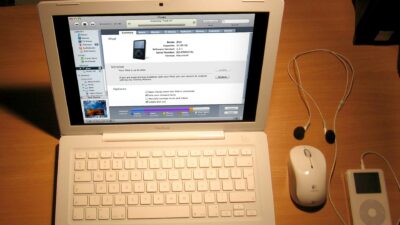
Now that almost everyone has an iPod, using multiple iPods on the same computer is much more common problem. But can you use multiple iPods on one iTunes account? There are a couple different methods that will enable you to use more than one iPod on the same computer. Pick the method that best fits your situation.
Table of Contents[Hide][Show]
Requirements:
- Any computer with iTunes installed
- Two or more iPods
NERD NOTE: iTunes is compatible with computers running Mac OS X, Windows 2000, Windows XP, Windows Server 2003, and Windows Vista operating systems. Apple have also developed a version which runs on mobile phones such as the Motorola ROKR and Motorola SLVR.
The Multiple Users Method: Giving Each iPod User Their Own Account On Your Computer
Does the whole family share the same computer? If everyone in the family has separate user accounts on the computer, then as long as they login as themselves, they will have their own iTunes Library. This is useful if everyone has different musical tastes; each person gets to maintain his or her own personalized iTunes music library, and can customize the iPod with his or her music.
How To Create A New User (Mac)
Here’s how to create a new user account for Mac users.
Login As An Admin User
Log into your computer using an account with Admin access.
Open Your System Preferences
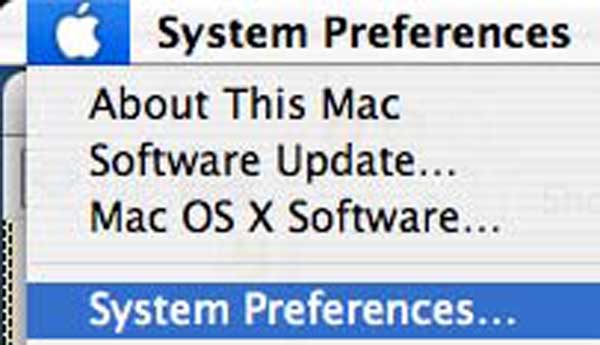
Click on the Apple in the top left of the menu bar and select System Preferences.
Select Accounts
Click on the Accounts icon.
Type In Your Admin Password
Before you can make any changes, you will have to unlock the system. Click on the lock and type in the admin password for your computer.
Create A New Account (If Necessary)
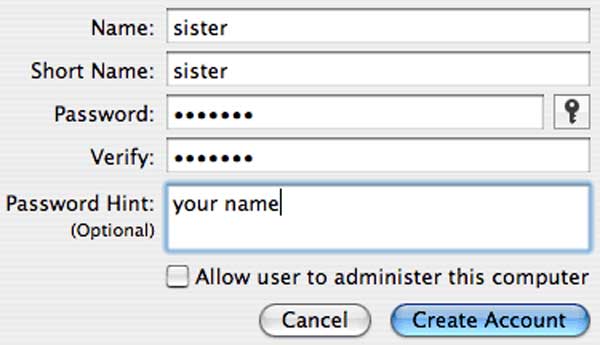
To make a new macOS account, click on the “+” symbol. This will bring up a window where you can fill out information about the new user including a long and short name, password and password hint. Repeat this step and create as many users as you need.
Mac User Options
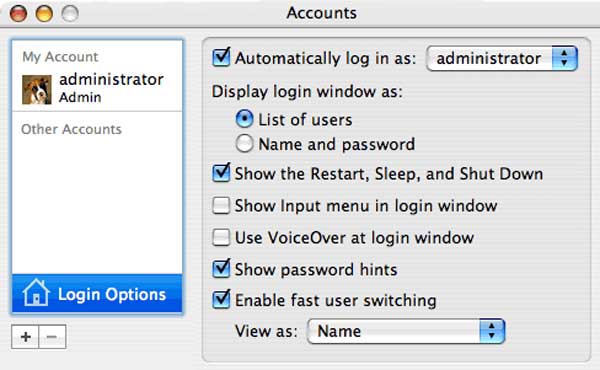
Once you’ve created multiple user accounts, you will need to give these users ways to access their accounts. Click on the Login Options button. A screen with several options should be displayed.
- You should enable “fast user switching” to allow users to switch to their account when the computer is already on.
- Turn off “Automatically log in as” and turn on “List of users” under the “Display login windows as”section. This will allow users to login to their account when the computer is turned on.
Login As New User
Now each user can login to their own account, customize their iTunes Library to their specific tastes and maintain their own iPods.
How To Create A New User (PC)
Because there are so many versions of the Windows operating system, it is difficult to write a simple tutorial that would cover all variations. However, if you look in your computer’s Help documentation, there is information on how to set up additional user accounts on your specific machine. To locate this information, do the following:
- Click the Start Menu, and then point to Help or Help and Support.
- Enter “new user” in the Search field.
- Press Return.
The One User with Many iPods Method
Do you own multiple iPods and want to manage them on the same computer? You can set iTunes to update each iPod with only certain playlists. For example, you could just have your “Workout Mix sync with your iPod Shuffle, but all your other music and videos sync with your iPod VIdeo. If you have an iPhone, you can select individual movies you want to sync.
Here’s how to set up multiple playlists for your iPods:
- Create a new iTunes playlist for each one of your iPods. This may be a good opportunity for a Smart Playlist.
- Configure the iPod Options in iTunes so that each iPod only gets updated with a specific playlist.
“I have all the songs from the library I want, some of which overlap with my wife’s, saved into a single playlist. I have all the songs my wife wants on a separate playlist. If you select all songs in the library and uncheck them, nothing will write onto the iPod under AutoSync. BUT, if you then click on the correct playlist, select all songs and check selection, they will be checked both in the playlist AND in the library. Switch the correct iPod to AutoSync and, poof, you can AutoSync your iPod with only the checked songs. Repeat the procedure with the other playlist and you can AutoSync two iPods on the same computer. A couple extra steps (and a little extra attention so there’s no disco on my iPod) and we’re both happy.” ~ tregan
My question is that if you buy a new ipod, can you still use your existing itunes for the new ipod so you can still have all the songs that are on your old ipod on the new one? If so do you just use the same dock and just plug the new ipod in? ~roxy_girl87
FAQ: Questions From You About Using Multiple iPods On One Computer
You sent us lots of questions about how to use multiple iPods on one computer or with the same iTunes account. Thanks for contacting us. We answered your questions below.
| ” Someone told me that my husband’s iPod would be immediately overwritten with all of my iTunes files if I plugged it into my Mac. Someone else told me that the computer simply wouldn’t mount a “foreign” iPod. ” ~ Rick |
Your computer will mount any iPod plugged into it, as long as that iPod is properly formatted for your operating system. I have 2, and they both show up on the desktop and in iTunes (Mac & PC). The automatic “overwriting” only happens if you have your iPod set to Auto Sync. Plug in your iPod. In the bottom right of the iTunes window are 2 little iPod symbols. The right one is the eject button. The left one is the options window. Turn off Auto Sync music.
| ” I have a friend in a church singing group. They would like to have 7 iPods and 1 Apple laptop. They would like to put the same music on all 7 iPods to listen to during the week before they sing together on Sunday. Is it possible to synch all seven ipods to the same iTunes in this fashion? Thanks for your help! ” ~ Ronald |
Yes and no. You will have to manually add music to each iPod. You can’t Auto Sync more than one iPod to the same computer. We suggest making a weekly playlist of the songs you want on each iPod and dragging that playlist to each iPod.
| ” I’m having a bit of a problem me and my sister both have an ipod but we are both using the same computer. I’ve tried to install itunes on the pc twice but it won’t let me. I know that on your web page your answer to this question is to turn Auto sync off but that isn’t the answer to my problem because in theory you are still using the same library. Me and my sister each have a separate profile on the computer (windows xp) and we want two different libraries, I’ve tried to install itunes on each separate profile but it won’t let me. Hope you can help with any suggestions!!! ” ~ Loubna |
You both need to log into your PC as different users. Then you can have 2 different libraries. This can be accomplished on both Macs and PCs. You do NOT need to install two different copies of iTunes.
Is It Possible To Use Multiple iPods On One iTunes Account?
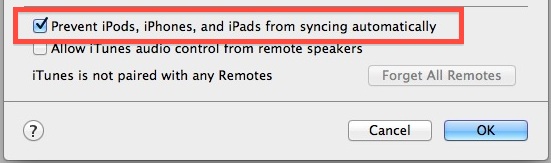
So what’s the final verdict? Can you use multiple iPods on one iTunes account? Yes, but only if you do one of the following:
- Make sure that AutoSync is turned off in iTunes.
- Create different user logins for your computer so each user will have their own iTunes Library.
But both options will successfully enable you to use multiple iPods on one computer. Good luck!

Frank Wilson is a retired teacher with over 30 years of combined experience in the education, small business technology, and real estate business. He now blogs as a hobby and spends most days tinkering with old computers. Wilson is passionate about tech, enjoys fishing, and loves drinking beer.












 5 Easy Elevator Hacks That Will Help Give You An Express Ride

Leave a Reply