
Table of Contents[Hide][Show]
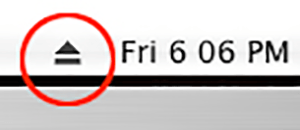
A Mac OS Menu Extra is a small icon that appears on the right side of your computer’s Menu Bar. For example, check out the image of the Eject icon that’s circled in red.
Mac OS X Menu Extras often…
- provide a quick and easy way to access common features (chat, sync)
- display information (time, email)
- control system functions (volume, eject a DVD/CD)
This tutorial will show you how to add icons for Mac Menu Extras to your Menu Bar in the Mac OS.
Third-Party Menu Extras For The Mac OS
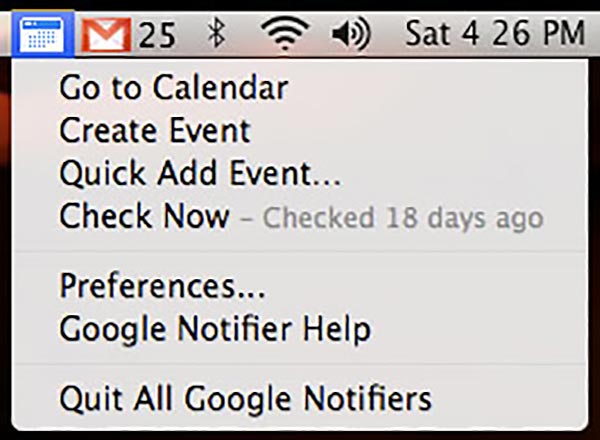
There are lots of third-party Menu Items available. One of my favorites is the Google Notifier which displays email and calendar info in the Menu Bar. According to this screenshot, I haven’t checked my Google Calendar in 18 days (oops!) and I have 25 new emails.
Developers make Menu Extras for everything from monitoring your processor’s temperature to the top news stories. Britta Gustafson, a Delicious community manager intern, put together a giant list of third-party OS X Menu Extras that you should check out.
Exploring The Built-In Mac OS Menu Items
But before you get lost exploring all the third-party Menu Extras available on the Internet, the Mac OS comes built-in with several very helpful Menu Extras such as Bluetooth, Remote Desktop, Airport, Battery, Classic, iSync, and Eject.
Here’s a tutorial and video demonstration that shows you how to add/delete and rearrange OS X Menu Extras.
Requirements:
- Any computer running the Macintosh OS X 10.1 operating system or higher
- A tiny drop of common sense
I’ve pointed out the Eject Menu Extra in the title of this article and in many of the images because, believe it or not, the Eject Menu Extra is the most popular. A quick Google search returned over 12,000 results of people looking to add and Eject icon to their OS X Menu Bar.
Open Your Hard Drive
From the Finder in Mac OS, double-click on your hard drive icon. It’s probably called “Macintosh HD” unless you renamed it. For example, my hard drive is called “Helo” (a Battlestar Galactica reference), not “Macintosh HD”.
Go To The Menu Extras Folder
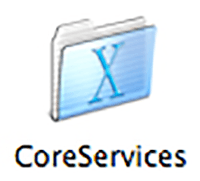
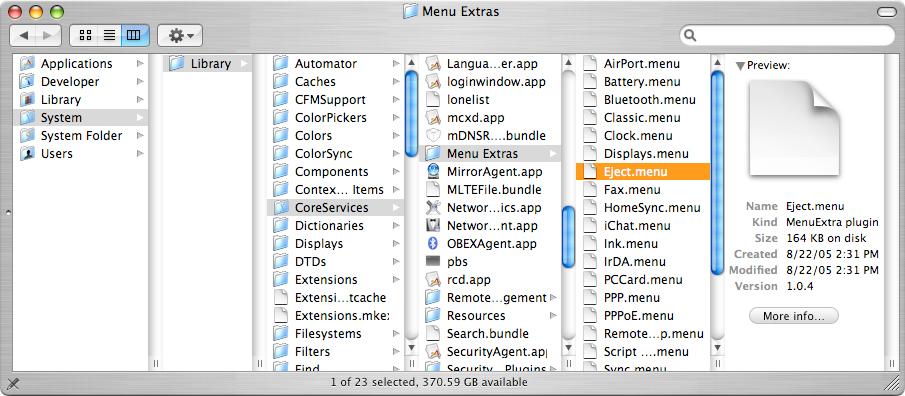
Navigate to the Menu Extras folder inside CoreServices:
- Macintosh HD > System > Library > CoreServices > Menu Extras
Or from the Go menu in Finder, select Go To Folder and type this in: /system/library/coreservices/menu extras
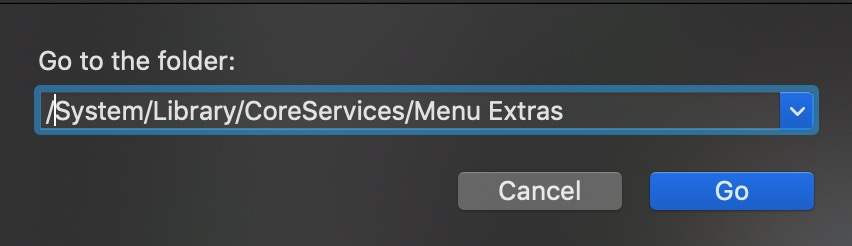
Double-Click On The Item That You Want To Add To Your Menu Bar
Inside the Menu Extras folder, you should see a file called “Eject.menu.” Double-click on “Eject.menu” and an eject button will magically appear in your menu bar.
Move Your Icon
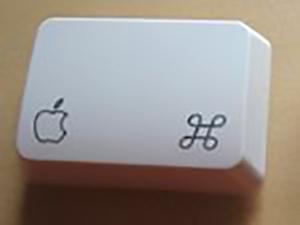
When the Eject icon appears, it may not be in the exact spot you want. To move it around, Command-drag the icon anywhere on the menu bar that you like.
The Command key is the key on your keyboard with the Apple icon. We usually get about 10 emails a month from those who don’t know this.
Add Additional Icons
Feel free to add as many Menu Extra icons as you want to your menu bar. Some Menu Extras require specific hardware and/or software to operate. For example, if you don’t have an Airport card installed inside your Mac when you double-click on the “Airport.menu” icon nothing will happen.
How To Remove Menu Bar Icons
If you accidentally click on a Menu Extra that you don’t want to be enabled, then Command-drag the icon off of the menu bar. It will turn into a little smoke poof, just like when you drag an icon out of the Dock and disappear.
Poof!
What Menu Items Are Included With The Mac OS?
Here’s a list of the standard Menu Extras that are included with OS X:
| AirPort.menu Battery.menu Bluetooth.menu Classic.menu Clock.menu Displays.menu Eject.menu Fax.menu | HomeSync.menu iChat.menu Ink.menu IrDA.menu PCCard.menu PPP.menu PPPoE.menu RemoteDesktop.menu | Script Menu.menu Sync.menu TextInput.menu User.menu Verizon.menu Volume.menu VPN.menu |
NERD NOTE: Menu Extras, sometimes called “menulets,” were introduced with Mac OS X v10.1 to replace Dock extras (docklings). Many Mac fans see this as yet another attempt to bring the beloved Control Strip from Mac OS 9 to Mac OS X.

Frank Wilson is a retired teacher with over 30 years of combined experience in the education, small business technology, and real estate business. He now blogs as a hobby and spends most days tinkering with old computers. Wilson is passionate about tech, enjoys fishing, and loves drinking beer.













Leave a Reply