
UPDATE: YouTube
has reworked their code several times in response to this article. They hate
us. We try to update this page frequently with new tricks so check back often. If you get an error when trying to download a YouTube video, please try
some of the plug-ins and scripts listed in step #3.
YouTube.com
is a great resource. YouTube allows users to freely upload, view,
and even share video clips on your blog or web site. But because anyone can upload
a video clip on YouTube, copyright violations are rampant. In an effort to
prevent the widespread distribution of illegal copied video files, YouTube
encodes its video files in the Macromedia Flash format, which prevents viewers
from downloading files and making digital copies.
If someone reports a video file
to YouTube because it's objectionable or in copyright violation, the video
in question can quickly and easily be taken down. All it takes is one report
to YouTube and the clip goes dead. This means that the great video you found
on YouTube may be gone before you even have time to post it on your blog
and email it to your friends. That's what happened with the SNL skit Lazy
Sunday. NBC made YouTube take it down. Damn you YouTube! Why wont you let us download files off your
site like Google Video does. While we wait for YouTube to let users freely
download videos, there are several ways to get around this limitation.
Here's a step-by-step tutorial on
how to copy video files off YouTube.com and convert them for iPod Video,
Apple TV, iPhone or even just to watch in iTunes.
This trick will work on either Mac or PC using Firefox, Safari or Internet
Explorer.
In this tutorial I will be copying the rare 1991 Conan O'Brien/Adam West TV
pilot called Lookwell off YouTube.com.
Requirements:
An iPhone, Apple TV or iPod Video
iTunes 6.0.1 or later
A web browser with the Flash
plug-in installed
An Internet connection
QuickTime Pro (Mac/PC), $30 from Apple.com or iSquint (Mac), free from iSquint.org
1)
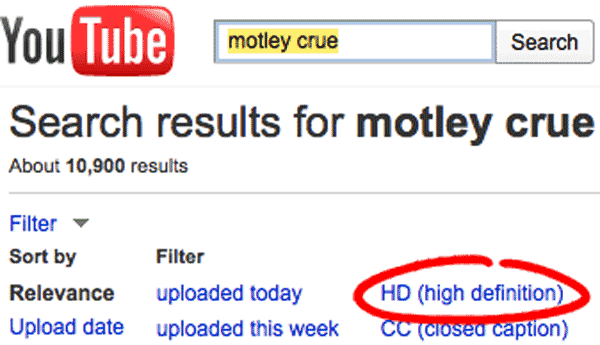
Find a good clip on YouTube.com
Tens of thousands of video
are submitted to YouTube everyday. Chances are you will find something
good on the site. For the purposes of this tutorial, we will be downloading
the 1991 TV pilot, Lookwell. It stars Adam West as a former actor turned
amateur detective. The show is pure genius. It was written by Conan
O'Brien (Late Night with Conan O'Brien) and Robert Smigel, the voice
of Triumph
the Insult Comic Dog.
Wait
for the video file to completely load. Depending on the length of the
clip, it make take several minutes to download. Once the clip
is cached on your computer, you are ready to find it and convert it.
NERD
NOTE: Until recently, Entire movies and Tv shows
could be watched for free on YouTube. However, In an effort
to curb copyright violations, YouTube recently limited video
submissions on the site to only 10 min's.
2) Let the clip
COMPLETELY load in your browser
Wait
for the video file to completely load! I'm serious. Wait
for the video file to completely load! One more time? Wait
for the video file to completely load! You'd be surprised how many idiots send us emails everyday that skip this step or are too dumb to know how to read. But they way, you should let the video completely load.
Depending on
the speed of your Internet connection and the duration of the video
file, it may take several minutes to fully load your clip. Lookwell
is a full 30 minute TV show and took about 8 minutes to load. Wait until the status bar has filled in
all the way to the right. The image below is only about 75%
done loading. If the status bar never fully filled up and you unsuccessfully tried to download the clip, DON'T expect it to work. It's an incomplete file. Just have patience and wait.
3) Find and download the
FLV file
Once the clip is completely
cached on your computer, you are ready to find and convert it. You
should be able to watch the entire clip in your web browser.
You may think that you are
watching the file directly off YouTube's server, but you are not. The
video file is actually temporarily saved somewhere on your computer.
Let's find it!
THE EASY WAY Firefox users (Mac/PC) can use several different plug-ins like DownloadHelper to automatically download YouTube video files. However, each time YouTube updates their code, these plug-ins and scripts usually need to be updated. YouTube doesn't like these Firefox plug-ins and actively tries to disable them. If you can't get a Firefox plug-in to work, or don't use Firefox (Internet Explorer sucks!), there are manual download methods (aka The Hard Way) for Internet Explorer, Safari and even Firefox below.
THE HARD WAY
Here are a few manual methods for downloading a FLV file from YouTube.com. Depending
on what web browser and operating system you are using, how and
where you find the video file on your computer will vary. Please try the easy ways listed above first. YouTube changes the way they code their site all the time to
prevent many of these manual methods from working.
You probably don't want a
file called something like "eBXal1GAA4A.flv" or "get_video",
so rename your file something like to something that makes sense like "Lookwell.flv". Be sure to add the ".flv" to
the end of your file name so other applications know it's a Flash Video file. One more time. Make sure you add the ".flv" to
the end of your file name so other applications know it's a Flash Video file.
If you find later on that your FLV file isn't working, try naming it ".flv1"
If all you want is a FLV
file, then congrats you are done. If you want to convert this file to something that
will work in iTunes or play on a Video iPod, then keep reading.
NERD
NOTE: FLV (aka Flash Video) is a file format used
to deliver video over the Internet to the Macromedia Flash
Player version 6, 7 or 8. FLV content may also be embedded
within SWF files. Notable users of the FLV format include Google
Video and YouTube. Flash Video is viewable on most operating
systems, via the Macromedia flash player or one of several
third-party programs such as MPlayer.
5)
Picking a video conversion application
Before you open up this Flash video clip in a converter application, make sure you add ".flv" to
the end of your file name (see above). If you ignore this step, then please try to stick your elbow in your ear before sending us an email asking for help.
QuckTime Pro (Mac/PC) is a fantastic application that works on both Mac and PC.
It supports every common movie format including: MOV, MPG, AVI, DV and FLV. QuickTime Pro does a lot more than
just convert Flash video files and only costs $30. For
more information or if you need to buy it, check out QuickTime Pro in the software section of Apple.com.
Once you have QuickTime Pro, please install these QuickTime plug-ins. They will allow you to open FLV files:
Perian plug-in (Mac) - NOTE: Perian requires flv files to have a .flv1 file extension
If you are a PC user, please download this file called "FLV.qtx" and copy it here on your hard drive:
C:\\Program Files\Common Files\Adobe\DVA\FLASH
You may also need to copy the "FLV.qtx" file to these locations as well:
C:\\Program Files\QuickTime\QTComponents
C:\\Windows\system32
Depending on what version of Microsoft Windows you have installed, these locations may or may not exist on your computer. Just copy the "FLV.qtx" to as many of the locations listed above on your computer as possible.
Can't afford $30? Then check out the free options listed below.
PC users looking for a free
web-based option might want to check out http://media-convert.com or http://effectmatrix.com/total-video-converter/.
There's also an application called Replay
Converter. Replay Converter is an easy-to-use audio/video
file converter, with the most options for iPod including iPod Video,
iPod Bookmarkable Audiobook, M4A, AAC and more. You need to convert the FLV file to a MPF! Replay Converter is
also a great way to convert Flash Video (like YouTube), Windows Media
and other web formats. However the demo version of Replay Converter
only converts the first 90 seconds of your video. Hopefully that YouTube
video you downloaded was less than 90 seconds. If not, just use the PC version of QuickTime Pro.
6)
Open and Convert FLV files
Importing files into QuickTime Pro is easy. Just drag and drop the FLV file
into the QuickTime application icon or select Open from the File menu and browse your computer to find your the FLV video file (File > Open). QuickTime will open it (see image on right) and you will be able to Export it out to another format.
If you want to tinker
with the audio/video settings of the video, then just take a look at the Info and Properties screens under the Window menu.
To export the clip, select Export from under the File menu. QuickTime Pro has export presets for Apple TV, iPhone and iPod. That's it (File > Export).
7) Import Video
into iTunes
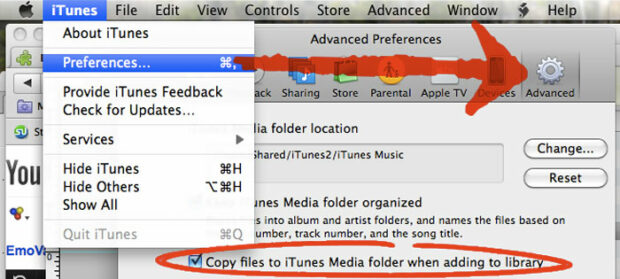
When you want to watch to
the video file you converted, just import it into iTunes. I hope you found this article useful. To email this article
to someone, use the Send to a Friend link on the top right of this
page.
8) Questions?
Congrats! You are done. Go buy yourself a drink... and feel free to buy us one too. You can drop a PayPal dollar in our MethodShop.com Beer Fund here
If you run into any issues or have questions, please drop
us a line.
NERD
NOTE: YouTube
was founded by former PayPal employees Chad Hurley, Steve Chen,
and Jawed Karim in February 2005. Thousands of video clips
are uploaded to YouTube everyday and watched by millions of
users. YouTube not only allows users to freely upload video
files, but easily post videos on blogs and personal web sites.
"OMG THANK YOU SO MUCH!!!!! there was this youtube video i wnted sooo abdly on my ipod... but they took down their download links i was so sad.. i tried 15 other ways t ownload and eihter they didnt go with the new mac i got or they wouldnt conert with what i had but after the iSquint download and your steps i know have it!!!!!! thank you so effing much!!!!!" ~Cait
"This website rocks man, I am from India and I have tons of You Tube videos sitting in my system and thought of upload it to my Apple 80gig Ipod, when I was searching how to do your website man....Ihae no words...Thanks a lot!" ~ Kevin
"First of all THANK YOU SO MUCH for your answer two days ago regarding my inquiry on iSquint and Donload helper by Firefox... I have been totally able to download ALL YOUTUBE Videos that I want." ~ Marcio
Copy
Videos Off YouTube YouTube
prevents viewers from downloading files off their site. But there are
ways around this. Here's a step-by-step tutorial on how to rip video
files off YouTube.com and convert them for your Video iPod.
Mac
Mini RAM Upgrade Tutorial Want
to upgrade the RAM in your
Mac Mini? You can definitely save a few bucks by buying a stripped
down Mac Mini and upgrading the RAM yourself. But before you
can install that extra RAM, you'll need to take a walk down to
your local hardware store and grab a couple putty knives.
How to Explain Twitter
to People As Twitter continues to gain in popularity and users, those of us already on Twitter might find ourselves in a position where we have to explain Twitter to a non-techie type person. So what do you say when someone asks you something silly like "What is the Twitter?" or "Are you taking the Twitter?"
iPod
Alarm Clock Whether
you prefer to be woken by the scream of a rock star or the
French horn in a classical symphony, the iPod's Alarm Clock
can help you open your eyes every morning with style!
Rip
DVD's to iPod Video Need
something to watch on your iPod Video? Here's a tutorial that explains
how to use a program called Handbrake to rip DVD's into iPod compatible
MPEG-4 video files.
Install
Free PSP Games Think
PSP games are overpriced? Us too. Here's a tutorial on how to download
free games off the Internet and install them on your PSP.
Copy
Videos onto a PSP Can't
get enough of your favorite TV show or movie? Here's a short tutorial
that expalins how to add videos to your Sony PSP.
Format
a PSP Memory Stick When
you first purchase a Memory Stick for your PSP, you need to format
it before you can use it. Here's how.
iPod
World Clock
iPod owners might have noticed the World
Clock. Seemingly trivial but helpful at the same time.
Remove
iPod Scratches Got
a scratched up iPod Nano? Me too. After a few failed attempts to
get Apple to help me out, I decided to fix the scratches myself.
Here's how to remove the scratched from your iPod Nano for only
$4.
Search
Engine Submit
If you have a web site, then you know how important it is to get
listed in the search engines. Here's a collection of direct links
to the submission pages of all the best free search engines
on the net.
Chat
Room Nerd Lingo
Do you speak Chat Room Nerd? No? Well you better wake
it up. If you don't learn soon, the next time you get an instant
message, you might not understand it. Worse yet, it might be
from your Grandmother.
Add
GPS Info to Your Blog You
probably know what your zip code or area code is (at least I hope
so) but what about the GPS of your house? Here's how to find out
and add it to the metadata on your web site
Expose
the Exposé Blob Like
using Exposé but hate hot corners and function keys? Why
not unleash the hidden Exposé Blob built into Mac
OS X? You can even make your blob look like Eric Cartman.
Play
Commodore 64 Games Again Want
to play those old Commodore 64 games from the early 1980's? All
you need is the game ROM and an emulator. Here's a tutorial to
get you started.
Reset
iTunes Play Count Has
a crappy song crept its way into your ‘Most Listened To' playlist?
This tutorial explains how to reset the Play Count of one or more songs
in your iTunes library.