

Do you have a ton of DVDs? Want to watch them on your iPad, iPod, iPhone, or Apple TV? Knowing how to import DVDs to iTunes is easier than it sounds. Here’s a Handbrake tutorial that explains how to use an awesome program called Handbrake to convert DVDs into MPEG-4 video files that you can load into your iTunes Library.
Requirements:
- An iPod, iPhone, iPad, or Apple TV
- A computer with a DVD drive and a 500 MHz processor or better with at least 16 MB of video RAM
- QuickTime 7.0.3 or later
- iTunes 6.0.1 or later
- VLC player (needed for Handbrake 0.9.3 and higher)
- Handbrake software (free)
This video below will walk you through ripping a DVD or converting a digital video file using Handbrake. Step by step text instructions can also be found below.
Download Handbrake & Install It
The first step is to download Handbrake and install it. Handbrake is a free and multi-platform (Windows, Mac, and Linux) application. If you already have Handbrake installed, please check to see if your version is out of date. New improvements are made on a regular basis for the program. After you install Handbrake, open it.
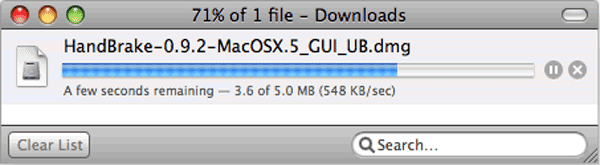
NERD NOTE: HandBrake is a GPL’d multiplatform, multithreaded DVD to MPEG-4 ripper/converter. HandBrake was originally developed by Eric Petit in 2003 for the BeOS, but over the years has been ported over to Mac, Windows, and Linux.
Install VLC Install (If Necessary)
What version of Handbrake are you using? Some versions of Handbrake 0.9.3 and higher won’t natively allow you to rip DVDs. Weird right? Handbrake was getting pressure from the movie industry and had to disable some features.
If you get a warning dialogue screen that says “Handbrake could not find VLC” or have trouble ripping DVDs with Handbrake, then try installing VLC on your computer.
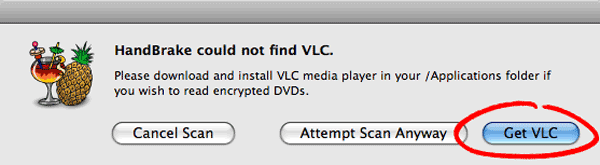
The VLC media player is a highly portable multimedia player for various audio and video formats (MPEG-1, MPEG-2, MPEG-4, DivX, mp3, ogg, etc.) as well as DVDs, VCDs, and various streaming protocols. It can also be used as a server to stream in unicast or multicast in IPv4 or IPv6 on a high-bandwidth network. Handbrake now uses some components of the VLC player and it must be installed if you want Handbrake to read DVDs.
After you download VLC, you need to install it. Directions are below for both Mac and PC.
- How to install VLC – Macintosh
VLC for Mac OS X is distributed as a disk image. Download the .dmg file, open it, and copy VLC to your hard drive (for instance the /Applications folder). Open VLC by double-clicking on it. - How to install VLC – PC
After you download VLC, the installer will walk you through the install
Load Your DVD Source
Grab a video DVD and put it inside your optical disc drive. Handbrake can convert standard video DVDs that you would normally play in a DVD player as well as digital video files such as AVI, MPG, WMV, MOV, etc. That’s right, Handbrake can also convert digital video files too.
Depending on your computer’s preferences, the DVD Player application might automatically open. If it does, just quit it. Only one application should be accessing the DVD at a time. In other words, you can’t watch a DVD while ripping it. Make sense?
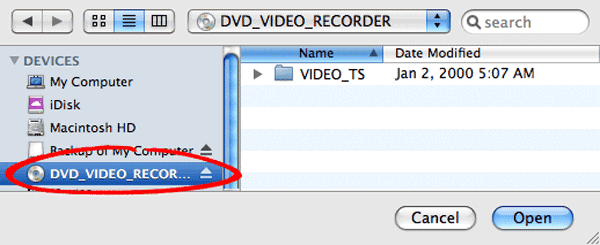
From the File menu in Handbrake, select Open Source (File > Open Source). Select the DVD you’ve inserted into your computer or a digital video file and press the Open button.
Source Settings
Handbrake will now scan your DVD or digital video file. This may take up to a minute or two depending on the contents of the DVD and the speed of your optical drive.
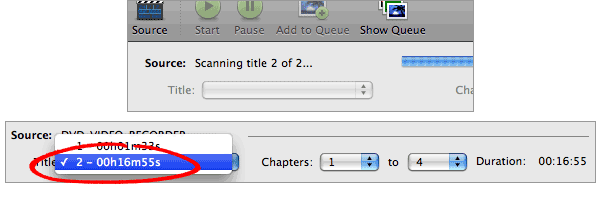
By default, Handbrake will select the longest title in the list. However, this may not be the content you want.
- Movies: If you are ripping a movie, the longest title is usually the main feature.
- TV Shows: If you are ripping a DVD containing TV shows, you should see a list of several titles all about the same length.
The shorter titles on the DVD are usually the video backgrounds used in the DVD menu screens. Unless you are a graphic artist, you probably don’t want these tracks. These shorter videos can also be DVD extras like movie trailers.
If you only want to rip one title but aren’t sure which one, you can click on the Picture Settings button (bottom right of the Handbrake interface) and manually step through several frames of the title to see what you’re ripping looks like.
Destination Settings
Where on your computer do you want to save your ripped DVD to? You’ll need a location that has enough hard drive space. Also, what do you want to call your file?

- File Destination: You can name your file and choose its destination using this box. Try to pick a location that has sufficient disk space to store the ripped file. On average, you need about 1 GB per full-length movie.
Select A Video Preset
Handbrake has preset settings for a variety of popular devices like the iPod, iPad, iPhone, Apple TV, Xbox, Sony PSP, and many more. Just select a preset and Handbrake will automatically fill in all the settings for you.
If you plan on watching your converted file on your iPod, iPad, iPhone or even Apple TV, then we suggest you select “Universal” from the Apple preset section and drop the average bitrate down to somewhere between 500-900 kbps. 500 kbps will give you a nice high quality file that will work on both big (HDTVs) and small screens (iPod/iPhone) and won’t take up a ton of hard drive space, but it will look slightly compressed. Pick a higher number, like 900 kbps, if quality is more important to you than a smaller file size.
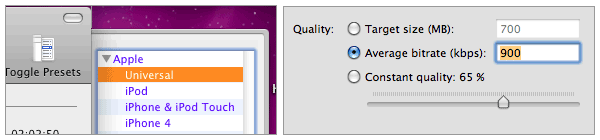
If you really want to experiment with all the Handbrake settings, then check out a tutorial we wrote for the old version of Handbrake before they integrated the Presets feature.
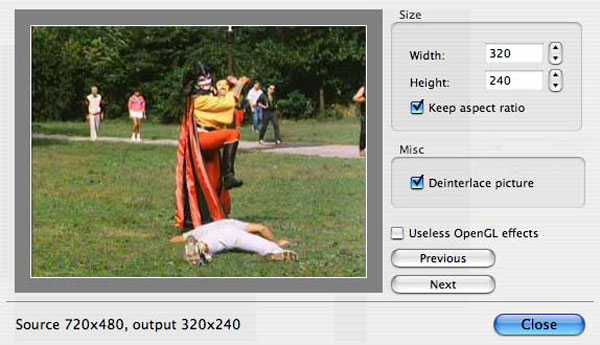
Your iPod really only wants video files that are 320 pixels wide by 240 wide. If you don’t plan on watching your ripped DVDs on anything else, then you can mess around with the settings. Turn on the “Keep aspect ratio button” and decrease the Width until it says 320. Handbrake will auto-adjust the height to match the width. If your video source is 3:4 (full-screen), the height will be 240. For wide-screen content, the height will be a lower number. This is fine and isn’t something to worry about.
But if you plan on watching this video on your TV with an Apple TV or an iPod Video dock, then you should keep the video size big. If you don’t have the money for an Apple TV, there’s this fantastic iPod video dock called the Keyspan TuneView. If you want to hook your iPod Video up to your TV, then you should check out the TuneView.
Picture Settings
Click on the Picture Settings button to launch a separate window. The only thing you really want to do here is to compensate for interlaced or grainy, compressed looking video. Handbrake will have adjusted everything here for you based on the preset you selected.
Sometimes video files will have horizontal lines in them. This is called interlacing. To get rid of interlacing, try turning on the Deinterlace option, and select “Fast.” The image below is animated and will toggle between when the deinterlace option is turned on or off. You can really see the difference around the edge of the flipper.
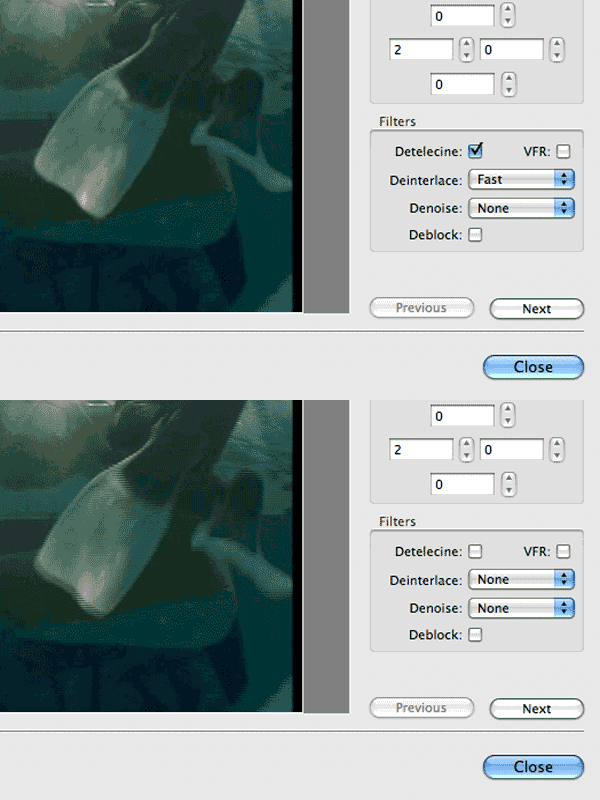
Denoise will help get rid of graininess and Deblock will help clean up the blocky or compressed looking video. Experiment and try to make your video clip look the best possible. Get it right or Cobra Commander will beat you up.
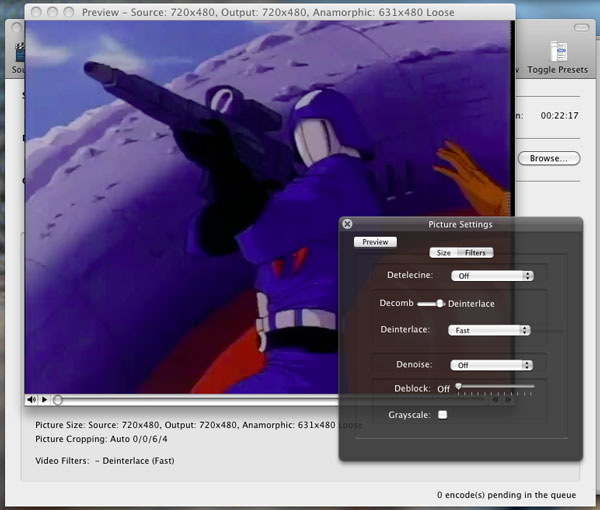
Can you guess what movie this still is from in the image below? Here’s a hint: this scene was shot in Central Park and the guy in the Kabuki outfit is the hero of the film. Please impress us with your film knowledge in the comments.
Subtitles & Audio
Does the movie you’re ripping have subtitles? Even if the movie isn’t a “foreign” film, some scenes might have subtitles. For example, Killing Zoe (Eric Stoltz), Ronin (Robert De Niro), The Tourist (Johnny Depp, Angelina Jolie) and Da Vinci Code (Tom Hanks) are all English films, but have several scenes where characters speak in a language other than English. Unless you speak French, good luck following some of the lengthy French spoken scenes in the Da Vinci Code.

Wait. Are we saying that you need to turn on English subtitles for the entire movie? No way. You can just burn in forced subtitles only. Meaning, the subtitles will only be activated when a character speaks in a language different from the main audio track like this screengrab from the 2010 film The Tourist starring(Amazon link) Johnny Depp and Angelina Jolie.
- Click on the the Subtitles tab.
- Select English from the language track drop down menu
- Check “Forced Only” and “Burned In”
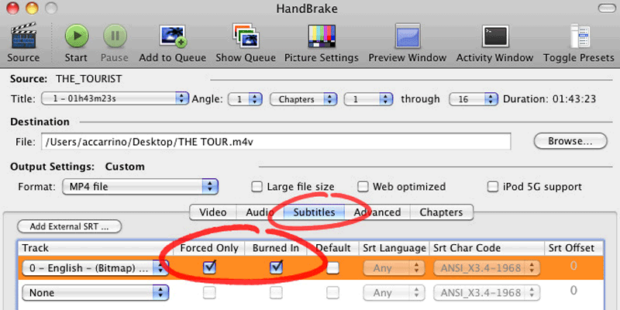
If you want to burn in subtitles for a specific language for the entire movie, then just select the language, burned in and DO NOT check “Forced Only.”
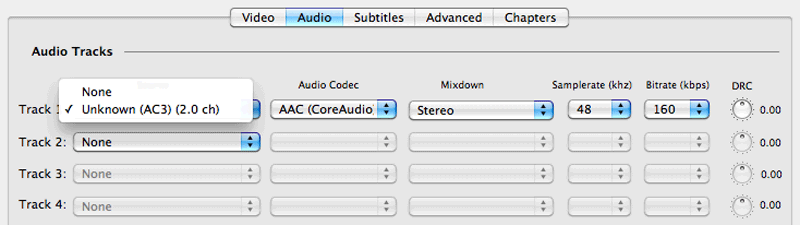
As far as audio, you should probably go with the default settings that Handbrake selects for you. But if your DVD rips the wrong audio or you want to customize what audio is included with your video, then you can do this by clicking on the Audio tab (Video, Audio, Subtitles, Advanced, Chapters). In the screenshot below, we’ve selected an audio track called “Unknown (AC3) (2.0 ch).”
Rip Your DVD
Finally! Once your settings are done, click “Add To Queue” and then “Start” to begin the DVD ripping process. The encoding time will depend on several variables including the duration of the video file, the speed of your computer’s processor, what other activity your computer is currently doing, the codec you selected (H264 or MP4), and if you decided to do a 2-pass encoding or not.

Handbrake will attempt to provide you with an ETA. The time will increase if you pause your encode or do anything that will hog the processor like start a 3D render in Maya. We suggest you do your DVD ripping overnight or at a time when you don’t need to use your computer.
When the encoding process is finished, quit Handbrake.
Import Into iTunes
Now that you have your new digital movie file, you probably want to import it into iTunes right? Here’s how:
- Connect your iPod, iPad or iPhone to your computer using the cable it came with and open iTunes (Applications > iTunes).
- Drag and drop the video file you just made into your iTunes library, or select Add to Library… from the File menu.
- Make sure the video file you just added to iTunes is in a Playlist that will get synced to your device.
- Select “Sync”
- The sync may take a few minutes. Once completed, the file should now be on your iPod, iPad or iPhone.
You Did It! – This Handbrake Tutorial Is Now Complete!
That’s it! This handbrake tutorial is now complete. You now know how to import DVDs to iTunes. If you run into any issues or have questions, please post a question on the MethodShop Facebook Wall. Is Handbrake too complicated? There are other easy DVD-to-iPod solutions that you can try like DVD Copy by InterVideo.
Troubleshooting
- Is the DVD you’re ripping scratched? Many times it’s impossible to rip a physically damaged disc. Try to find another copy of the DVD that isn’t scratched.
- Are you trying to rip a Blu-ray disc? Try using one of these apps BestHD Blu-ray DVD Ripper (PC), 123 Copy DVD, or(Amazon link) Blu-ray to MP4 Ripper (MAC).
- Advanced copy protection can also cause ripping errors. If you are on a Mac, then try ripping the DVD to a hard drive first using a free application called MacTheRipper. Eject the DVD from your computer and then point Handbrake to the folder that MacTheRupper created on your computer.

Frank Wilson is a retired teacher with over 30 years of combined experience in the education, small business technology, and real estate business. He now blogs as a hobby and spends most days tinkering with old computers. Wilson is passionate about tech, enjoys fishing, and loves drinking beer.











 9 iPad Accessories That Will Help You Increase Your Productivity

Leave a Reply